Use case
Let AI answer after hours
An AI Agent in your call flow picks up when the office is closed, answers simple questions and takes a message for the team.
The problem
After-hours callers usually reach a recorded message or voicemail. Many hang up without leaving a message, and the ones who do often leave incomplete details. Simple questions, such as when the office opens or how to reach support, wait until the next working day even though the answer never changes.
Hiring an answering service or putting staff on call for these calls costs more than most small and mid-sized teams want to spend on routine enquiries.
How phone.systems™ handles it
phone.systems™ includes an AI Agent object for call flows. It is a voice agent that talks to the caller using instructions you write. Setting it up for after hours works like this:
- Create the agent. Give it a name, such as After-Hours Assistant, and choose a voice.
- Write the greeting. This is the first thing the caller hears, for example: "Thanks for calling. Our office is currently closed, but I can help with basic information or take a message."
- Write the prompt. The prompt is the agent's instructions: what it may tell callers (opening hours, which team handles what) and what it should collect (name, company, phone number and reason for calling).
- Route calls to it from the Time Router. Connect the agent to the closed output of the Time Router, usually after a short Audio Playback message.
During working hours calls go to your team as usual. Outside them, the agent answers, handles simple questions and takes a message. The call appears in Call History like any other call.
Already use an AI agent elsewhere? With BYOAI (bring your own AI) you can connect your own AI agent to the same branch of the call flow instead of the built-in AI Voice Agent.
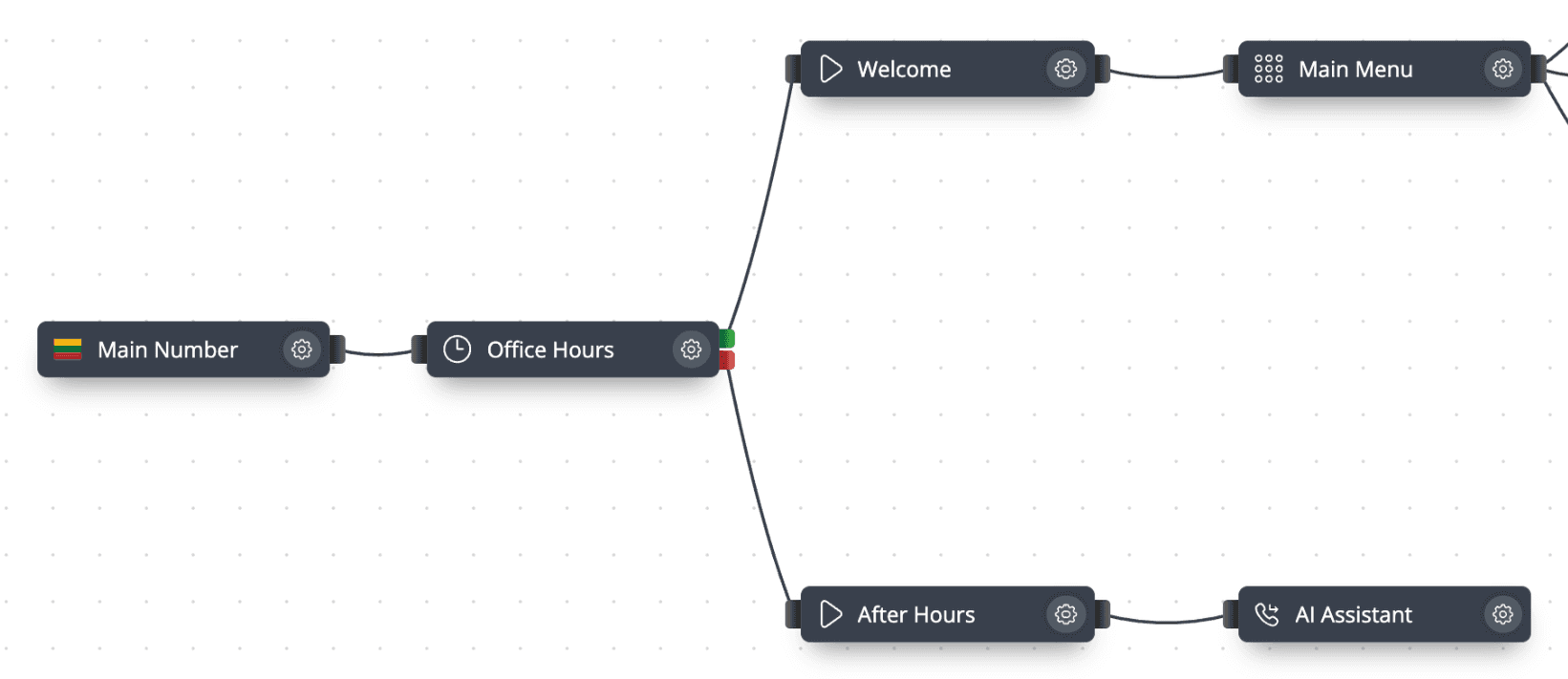
An AI agent on the closed branch
- Step 1: Virtual number
Your main business number.
- Step 2: Time router: Office Hours
A business-hours schedule, for example Monday–Friday 09:00–17:00.
- Open: Welcome message, Main Menu and department queues
- Closed: After Hours message
- Step 3: Audio playback: After Hours
Short message that the office is closed.
- Step 4: AI Agent
Greets the caller, answers simple questions, takes a message.
- Step 5: Call History
The team sees after-hours calls the next working day.
The AI agent configuration
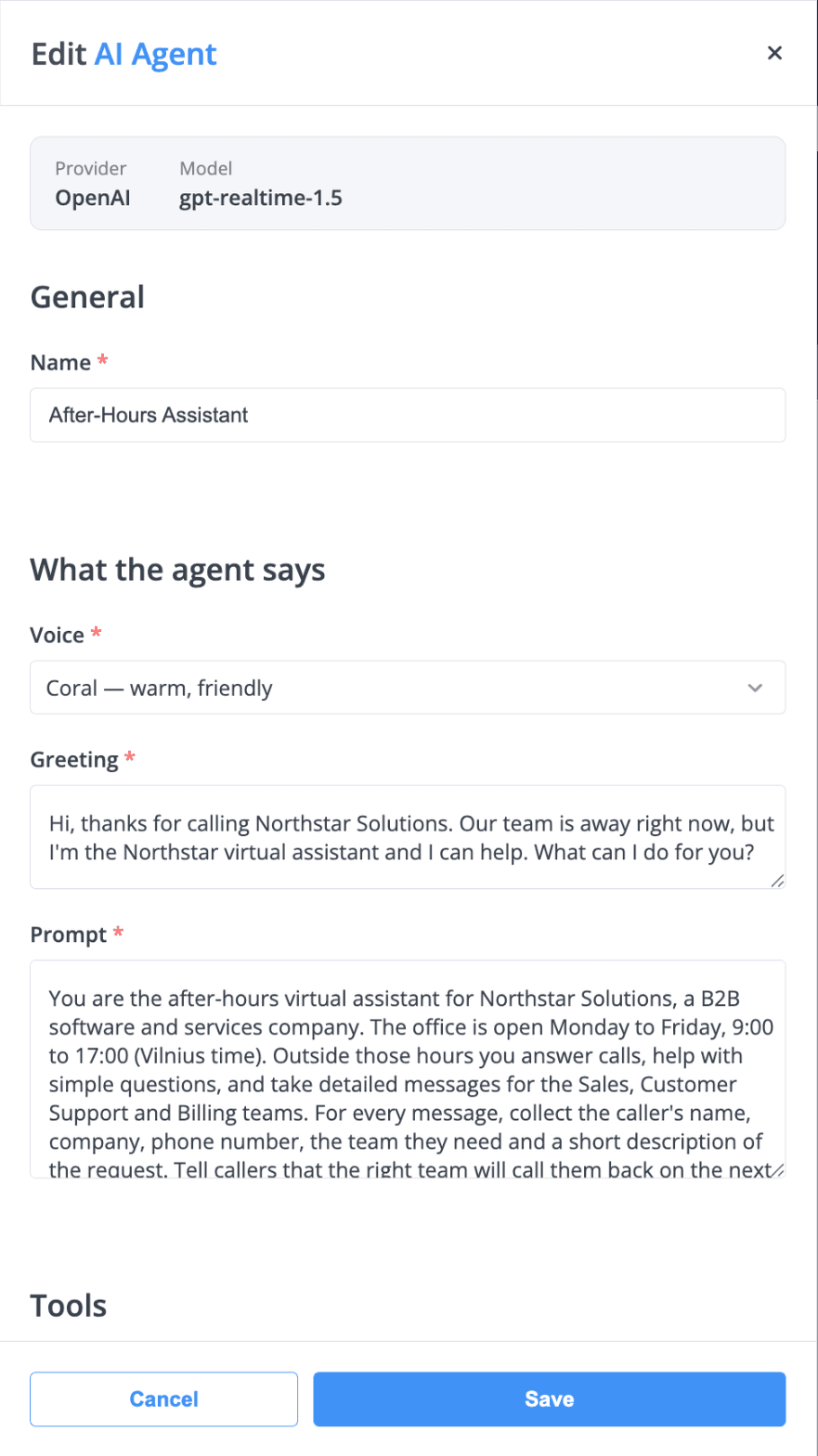
Everything the agent says is set in four fields: name, voice, greeting and prompt.
AI agent configuration: name, voice, greeting and a prompt written for after-hours message-taking.
Where the agent sits in the call flow
The AI agent is connected to the closed output of the Office Hours time router.
What you configure
Name
An internal name for the agent, such as After-Hours Assistant, so it is easy to find in call flows.
Voice
The voice the agent speaks with on the call.
Greeting
The opening sentence the caller hears as soon as the agent answers.
Prompt
Instructions that define what the agent may say and which details it should collect from the caller.
How to set it up in phone.systems™
Check your schedule in Time Schedules
Make sure working hours, time zone and holiday exceptions are correct; they decide when the agent answers.
Create the AI Agent in Call Flows
Add an AI Agent and set its name, voice, greeting and prompt.
Write a focused prompt
List the facts the agent may share (opening hours, departments) and the details to collect (name, company, number, reason for calling).
Connect it to the closed branch
Cable the Time Router's closed output to an Audio Playback message and then to the AI Agent.
Follow up from Call Analytics
Review after-hours calls in Call History, add notes or tags, and mark them Resolved when done.
Capabilities used
The phone.systems™ features this relies on. Each page explains how the capability works.
Call routing
Build call flows in a drag-and-drop editor: voice menus, time routers, ring groups, queues, voicemail, caller routing and an AI agent. Changes apply in real time.
Learn moreCall analytics
Call history with wait time, talk time, status, tags and notes, routing attempts, CSV export, and call and user statistics (ACD, AWT, ASR) in phone.systems™.
Learn moreBusiness phone system
phone.systems™ is a cloud business phone system: numbers in 93 countries, users and extensions, visual call flows, desktop and mobile apps, call history and recording.
Learn more
Frequently asked questions
What can an after-hours AI agent do?
It answers the call with your greeting, responds to simple questions using the information in its prompt, and takes a message. It is not meant to replace your team for complex requests.
Does the AI agent answer during business hours too?
Only if you route calls to it. In a typical setup the agent sits on the closed branch of a Time Router, so it answers only outside the hours in your time schedule and on holiday exceptions.
Can I change what the agent says?
Yes. The greeting and prompt are plain text fields. Edit them at any time; call flow changes apply in real time.
Can I use my own AI agent instead?
Yes. Use the built-in AI Voice Agent or connect your own AI agent with BYOAI. Either one sits in the call flow, so the Time Router decides when it answers.
How much does the AI agent cost?
The built-in AI Voice Agent is priced separately from seats; contact sales through the demo request form for details. Ask sales about current terms for BYOAI as well.
Set up a phone system that fits how you work
Configure numbers, users and call routing in one place, and change them whenever your business changes.